Share JSON with a URL
One click to turn the open document into a shareable link — and control whether it opens in the graphical node-graph or the default formatted viewer. Plus what ? and # really mean, how long a URL can be in 2026, and how to share something big.
The Linkify icon Graphical vs default viewer ? vs # URL length limits Sharing a big JSON
The Linkify icon
Open any JSON file and look at the top-right corner of the viewer. Two icons sit there, stacked:
- Copy (the overlapping-squares glyph) — copies the pretty-printed JSON text to your clipboard.
- Linkify (the chain-link glyph, right underneath) — encodes the whole document into a URL and copies that link to your clipboard. Paste it into a chat, an issue, or your browser's address bar and the recipient opens the exact same JSON, already parsed and formatted — no upload, no file to attach.
Both icons are disabled when the file is too large: Copy stops once the formatted text would be too big to hold in the clipboard, and Linkify stops once the document no longer fits inside a URL (see the limits below). On a normal-sized document both are one click away.
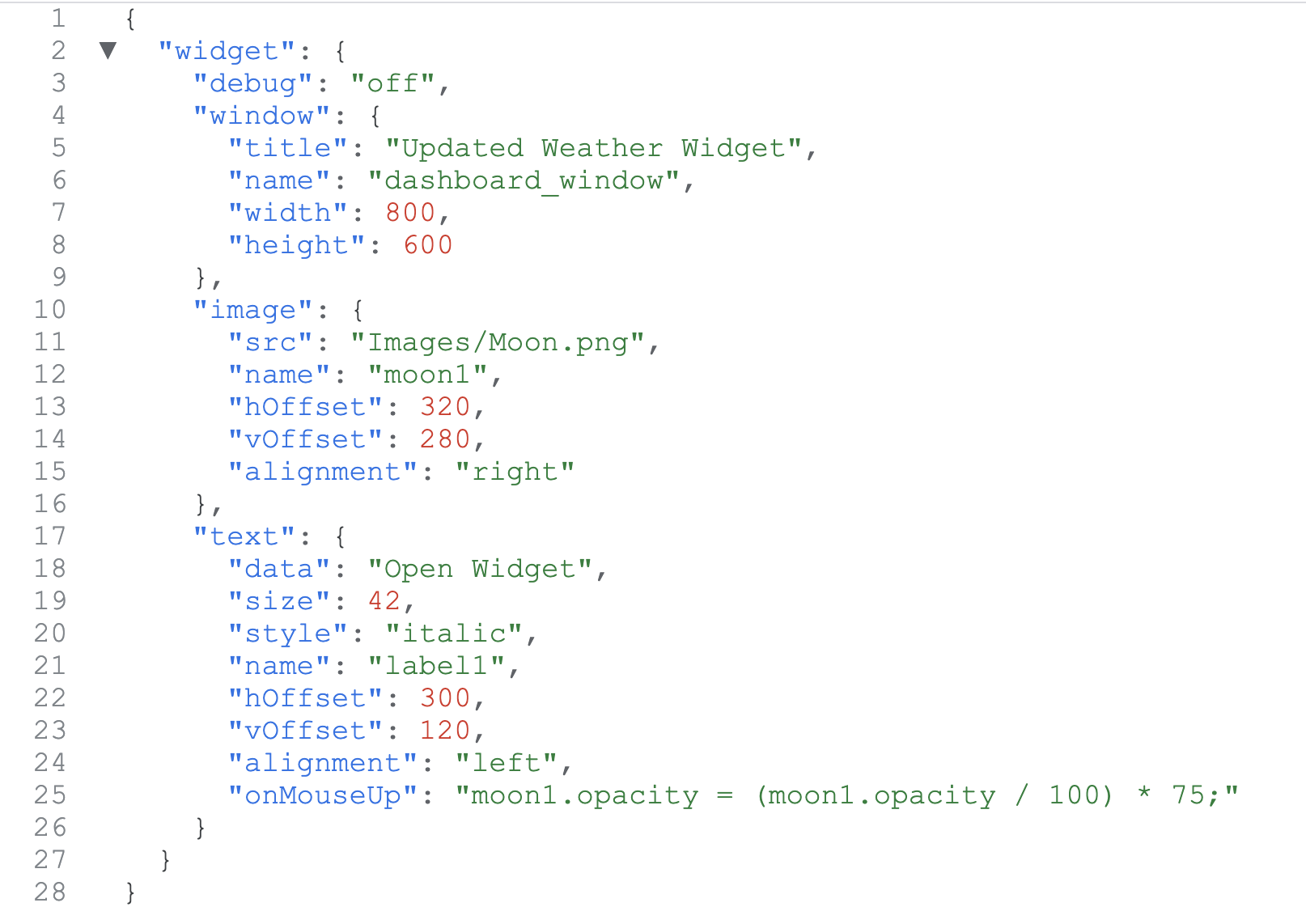
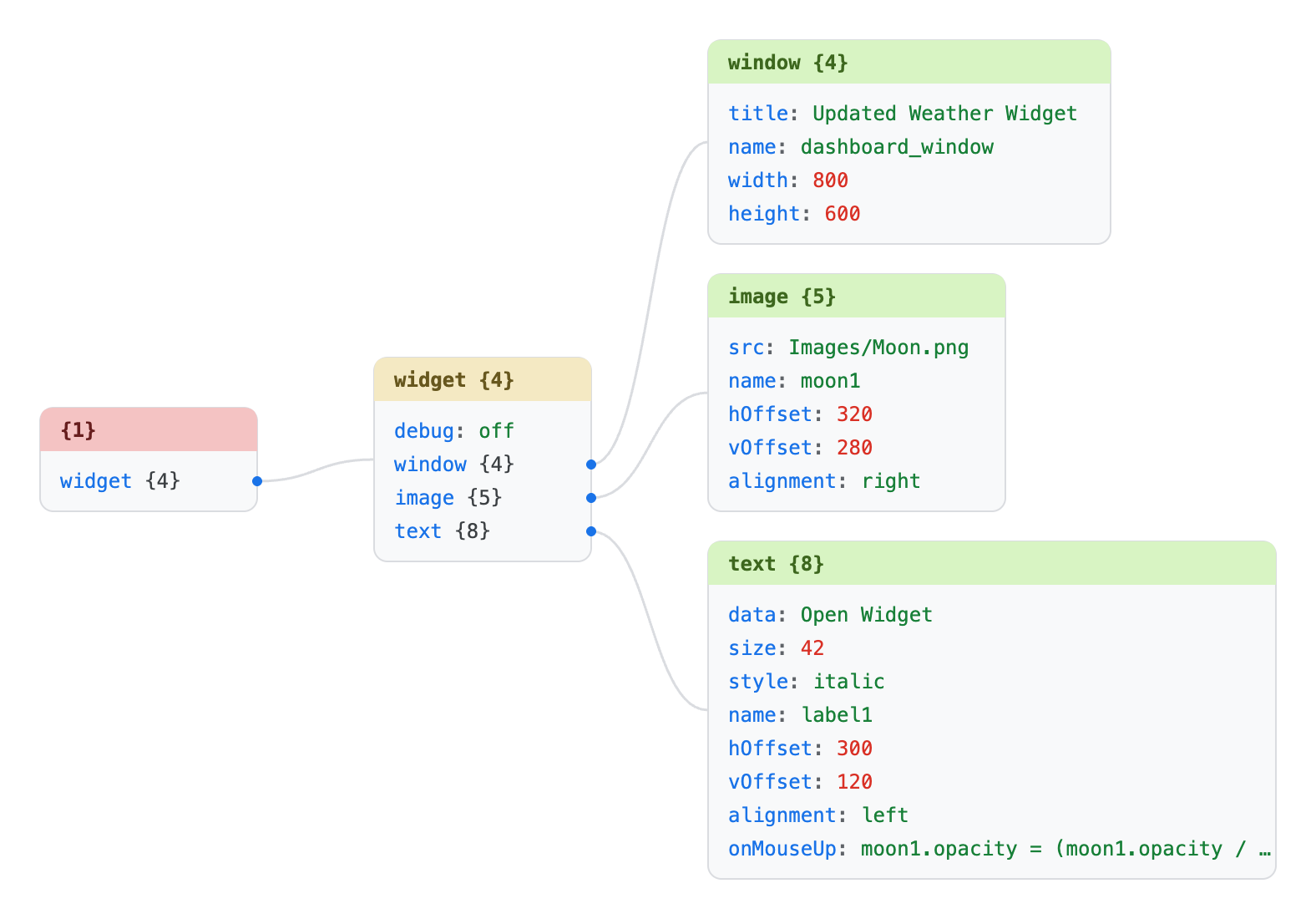
Land on the graphical viewer or the default viewer
A Linkify link records which tab to open. The icon in the plain viewer makes a link to the default formatted viewer; the icon on the Graphical tab makes a link that lands directly in the node-graph. Under the hood that is a single URL parameter — view — that you can also set by hand:
# default formatted viewer (no view hint needed)
https://fastjsonviewer.com/#jsonString=...&encoding=base64

# land on the graphical node-graph
https://fastjsonviewer.com/#jsonString=...&encoding=base64&view=graphical
Accepted values for view are viewer (the default), graphical, raw, hex, yaml, csv, stats and query. If the requested tab can't apply to that document — for example csv on JSON that isn't an array of records — the link quietly falls back to the default viewer. Try it on the widget example:
⊹ Open in the default viewer → ⊹ Open in the graphical view →
? versus # — query string vs fragment
Every URL can carry two kinds of trailing data, and they behave very differently. Fast JSON Viewer puts your JSON after the # on purpose.
https://host/path?name=value      ← query string
https://host/path#name=value      ← fragment
The query string (after ?) is defined in RFC 3986 §3.4. It is part of the request that the browser sends to the server: it appears in server access logs, in the Referer header passed to third parties, in proxy and CDN logs, and in browser history sync. Good for parameters you don't mind being recorded; bad for the contents of a private file.
The fragment (after #) is defined in RFC 3986 §3.5 and in the WHATWG URL Standard. By design it is never transmitted to the server — the browser strips it before making the request and keeps it client-side, which is why it has always been used for in-page anchors. That is exactly the property we want: your JSON lives in the fragment, so it stays in the recipient's browser and never touches our servers, logs, or any Referer header. It matches the rest of the app, where files are parsed entirely on your device.
?jsonString=… and ?view=… are accepted too, for cases where a tool can only build a query string. But the Linkify button always emits the # form, because the fragment keeps your data off the wire.How long can a URL be? The limits of each
The single most important thing to get right: the ? query and the # fragment have completely different limits, because only the query reaches the server. Conflating them is where most "max URL length" advice goes wrong.
A query string (after ?) is bounded by the strictest hop between you and the origin — the browser, then every proxy, CDN and web server in the path. In practice that's frequently just 4 KB–8 KB (e.g. nginx's default large_client_header_buffers), and going over returns 414 URI Too Long. If you need a link to survive any server, keep the whole URL under ~2,000 characters.
A fragment (after #) is never sent anywhere. No server, CDN or proxy ever sees it, so none of those limits apply. Its only ceiling is what the browser itself will hold in memory — and that is enormous: tens of thousands of characters at the low end, and many megabytes in Chromium-based browsers. That's the second reason Linkify uses #: beyond privacy, the fragment can simply carry far more data than a query ever could.
# fragment in your address bar until your browser stops keeping it, then reports the exact maximum. It runs entirely client-side — nothing is uploaded.The limit Fast JSON Viewer uses
To keep links reliable across browsers and clipboards, the viewer caps a Linkify URL at 1 MB of decoded JSON (with a defensive 8 MB ceiling on the raw encoded fragment). Base64 inflates bytes by about a third, so a 1 MB document becomes roughly a 1.3 MB fragment — comfortably within Firefox's and Safari's limits and within Chrome's much larger address-bar buffer. Above 1 MB the Linkify icon is disabled; open the file locally (drag-and-drop is instant and has no size limit) or share the file itself.
Sharing a big JSON
Linkify links are self-contained, which is great for privacy but does make them long — a few hundred kilobytes of JSON is a few hundred kilobytes of URL. Two tips:
- Shorten it. Run the Linkify URL through a shortener like Bitly (or TinyURL) to get a tidy
bit.ly/…link that expands back to the full fragment when clicked. Handy for chat, slides or anywhere a wall-of-base64 looks ugly. Note that the shortener then stores the expansion, so use it only for data you're comfortable handing to a third party. - Past the 1 MB cap? Skip the URL entirely and send the
.jsonfile. The recipient drops it onto the viewer — it's parsed on their machine in their browser, with nothing uploaded, the same way Linkify links open.
⊹ Open the viewer Test your #hash limit Read the guide What is JSON?